Picture your fence. Know your next step.
Everything you need to use the Fence Visualizer, from your first yard photo to a visualizer on your own website.
Start with what you want to do
| I want to... | Open this guide |
|---|---|
| Take or upload a photo of my yard | Photos of your yard |
| Show where the fence should go | Place your fence |
| Pick privacy, slat, board-on-board, shadowbox or picket | Choose a fence style |
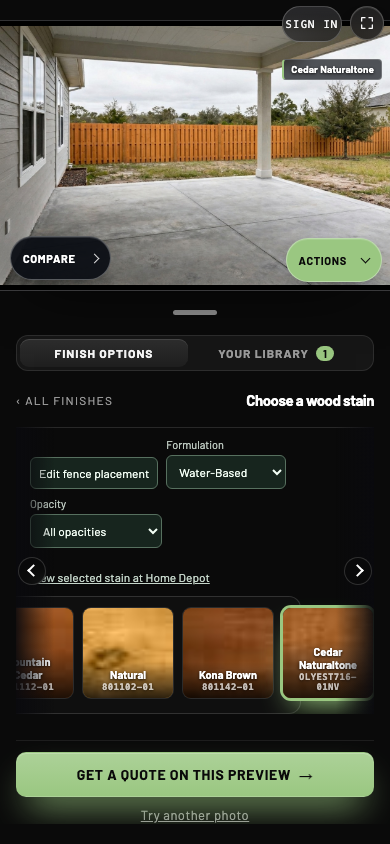
| Find a stain by color, formulation or opacity | Choose a wood stain |
| See my yard before and after | Preview and export |
| Compare two stains on the same fence | Compare fence options |
| Find my saved previews and videos | Your library |
| Send my fence to a contractor | Request a quote |
| Offer fence previews on my website | Turn on fencing mode |
| See what arrives with a fence lead | Fence quote requests |
A quick note about your screen
Your contractor chooses the branding and which tools are turned on. Colors, company name and button placement may differ from these examples. If you do not see Your library, Compare or video controls, that feature may not be enabled for the visualizer you opened.
Screenshots open in phone view. Select Desktop below a caption to see the wider layout, or Enlarge screenshot for a closer look. Numbered callouts point to the controls described below each image.
Screenshots show the current Fence Visualizer with an example backyard. Dashboard examples use sample company and account information. A generated preview helps you explore a look; confirm the style, stain, height and final specification with your contractor.
Need a specific control? Open the screen and button reference. If something does not work, start with troubleshooting.