Create and access your account
Your CoatFlow account is where you turn on fencing mode, set your branding, copy your installation code and manage your plan.
Open Your CoatFlow account. The floor and fence visualizers share one account page, which is why its address includes floor-visualizer.
Create an account
- Select Create an account on the sign-in screen.
- Enter your company email and a password of at least 10 characters.
- Review the linked Terms of Service and Refund Policy.
- Select Create account.
- Enter the six-digit verification code sent to your email, then select Confirm email.
You can also select Continue with Google and complete the Google sign-in flow. Use the same identity when you return to manage this account.
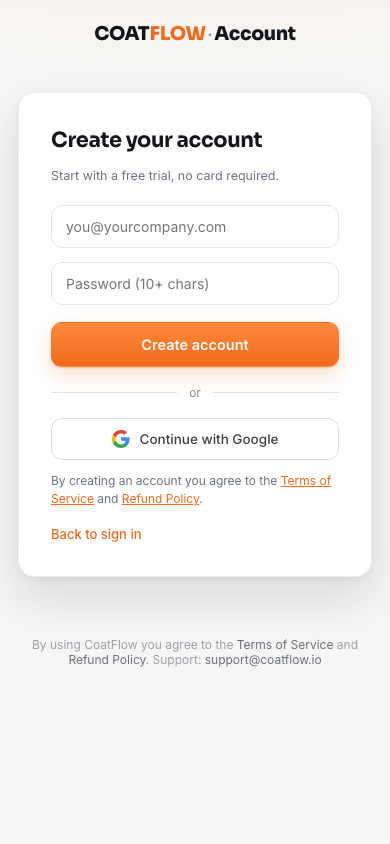
- 1Email
Use an email you can access. Enter a password of at least 10 characters in the field below.
- 2Create account
Continue to email verification.
- 3Continue with Google
Use the Google sign-in flow instead.
Confirm your email
If you already have a code, return to sign-in and select Have a code?. Enter your email and six-digit code, then select Confirm email. Use Back to sign in to return to the usual sign-in form.
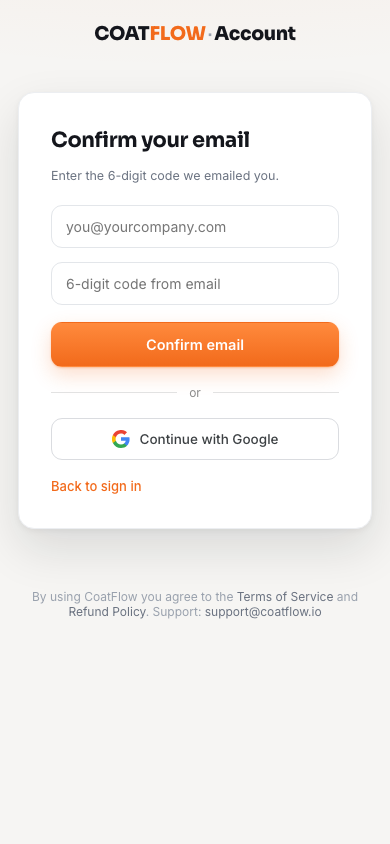
- 1Email code
Enter the six-digit code sent to your email.
- 2Confirm email
Finish verification to continue.
Check spam or junk folders if the email has not appeared. If your code is rejected, confirm that the email matches the account you created. Contact support if you cannot complete verification.
Sign in next time
Enter your email and password, then select Sign in, or use Continue with Google. Sign out in the dashboard ends the session on that browser.
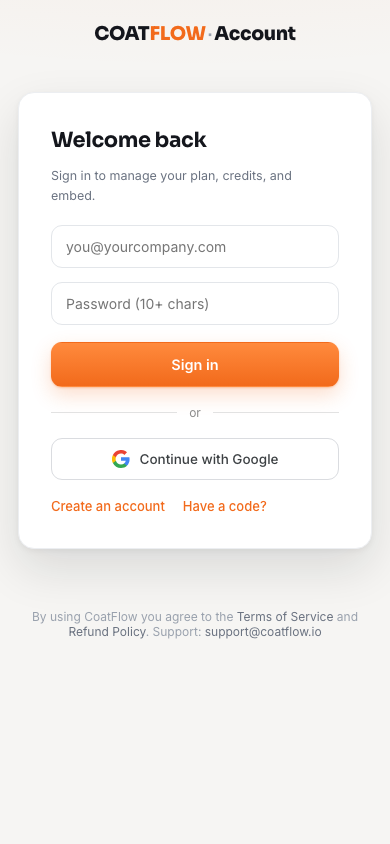
- 1Email
Use the email associated with your contractor account.
- 2Sign in
Continue with your email and password.
- 3Continue with Google
Use the same Google identity you used before.
The contractor sign-in form has no password reset link. If you cannot access your account, contact CoatFlow support. The visitor sign-in screen inside a visualizer is separate and has its own options.
Find your way around
| Tab | What you can do |
|---|---|
| Visualizer | Edit your brand, turn on fencing mode and other features, and preview saved settings. |
| Embed | Copy your website code and manage authorized websites. |
| Billing | Choose a plan, buy available credit packs and open billing management. |
| Usage | Check remaining photo and video renders. |
Start with Turn on fencing mode, then Brand and live preview, and finally Website installation.