Use the visualizer on a phone
The phone layout keeps the fence preview above a compact drawer. The same steps apply: photo, fence line, style and stain, render, then save or request a quote.
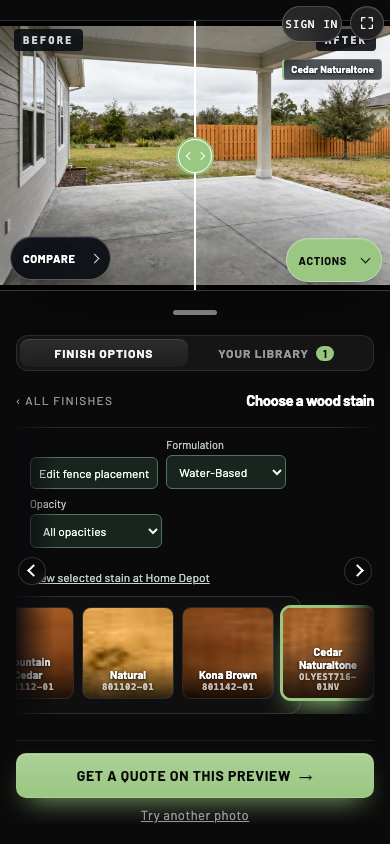
- 1Divider
Drag with one finger to see your yard before and after.
- 2Actions
Enlarge, export or render a video.
- 3Your library
Find saved previews and Compare.
- 4Get a quote on this preview
Send this preview to the contractor.
Take or upload a photo
Tap Take a photo to open the camera, or Upload photo to choose a picture you already took. Hold the phone level and step back far enough to fit the whole fence line.
Draw the fence line with your finger
Tap to add corners, or drag to draw. If your finger hides the spot you are marking, tap a point and check it, then use Undo to adjust. Approx. length and the buttons sit below the photo.
Browse styles and stains
Swipe the row of style cards sideways, then tap a style. The Formulation and Opacity filters sit above the stains; swipe the stain row to see more colors. The render button stays near the bottom of the drawer. If you just chose a new stain and the old preview remains, tap Render photo.
Inspect and save
- Select Actions > Show before and after, then drag the divider with one finger.
- Open Actions for Enlarge and Export.
- Use Your library to find saved work and Compare.
- Use the full-screen corner icon if your website offers it.
Export may open your phone's share sheet. Complete the save action in that sheet to keep the image or video.
When a keyboard or video is open
Scroll the form to reach fields and the send button. Close the keyboard if it covers a control you need. The video player's buttons belong to the phone's browser and may look different from the visualizer's own controls.
If you signed in in another tab, return to the original visualizer tab to continue with your photo. If an embedded page behaves differently, try opening the visualizer link directly in your usual browser.