Compare fence options
Compare puts two previews of the same photo side by side. It helps you choose between stains, or between styles, without switching back and forth.
Open a comparison
- Render a fence preview on your photo.
- Choose another stain or style on the same photo and select Render photo again.
- Select Compare near the preview or in Your library. The label may include a count.
- Use Finish 1 and Finish 2 to choose the two previews.
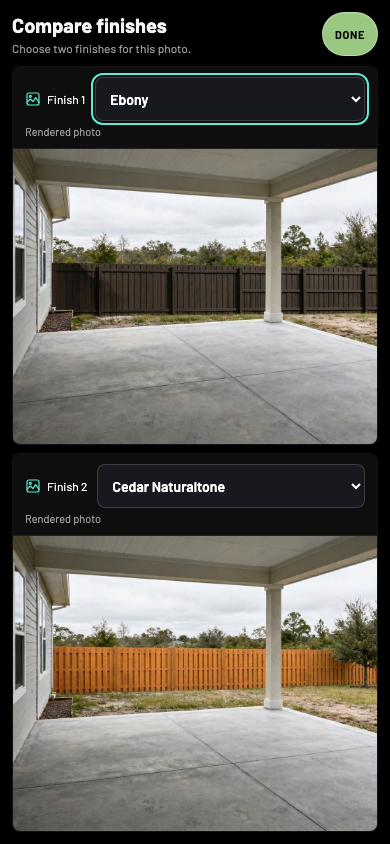
- 1Finish 1
Choose the first preview.
- 2Finish 2
Choose the second preview.
- 3Done
Close Compare and return to your work.
Choose another pair
The screen is headed Compare finishes. Each dropdown lists the previews rendered on this photo by stain name. Change either one to compare another pair. The layout shows two previews at a time, side by side on a computer and stacked on a phone.
If a panel says Add a second finish, select Choose a finish, render another preview on that photo, then reopen Compare. You cannot compare previews of two different yard photos in this view.
Leave Compare
Select Done, press Escape on a keyboard, or tap the surrounding margin where available. Closing Compare does not delete the saved previews.
If Compare is missing, check that the feature is enabled and that you have two previews of the same photo. On a phone, look in Your library as well as the preview toolbar.