Request a quote on your fence
Once you have a fence preview you like, select Get a quote on this preview. What happens next depends on how the contractor set up the visualizer.
If a quote form opens
The form is headed Get a project estimate and names the contractor who receives it. It explains that they get your previews and follow up to schedule a free on-site estimate.
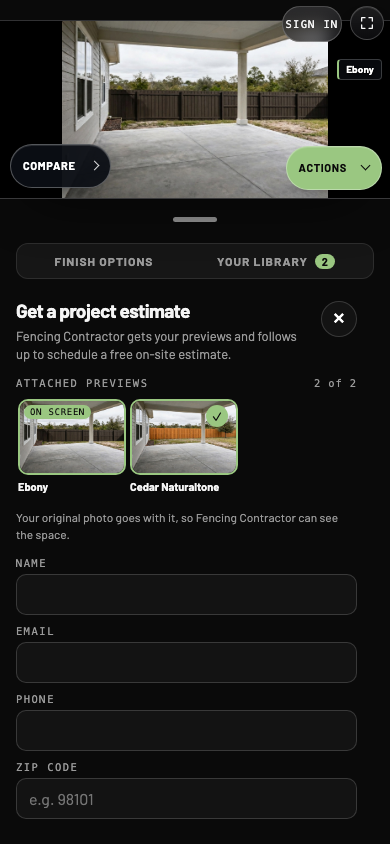
- 1Attached previews
The preview on screen is always included. Tap others to add or remove them.
- 2Name
Enter your name so the contractor knows who to contact.
What goes with your request
- The preview on screen, marked On screen. It is always included.
- Other previews from this visit. Tap one to add or remove it, up to four in total.
- Include the walkthrough video when a walkthrough exists and can be attached.
- Your original yard photo, so the contractor can see the space.
Some forms also offer Continue with Google to fill in your name and email.
Your details
| Field | What to enter |
|---|---|
| Name | Required. Your name. |
| Required. Where the contractor can send updates. | |
| Phone | Required. A number with area code. |
| ZIP code | Required. A 5-digit ZIP code. |
| Project type | Required. Choose the closest option. For a fence, Patio or outdoor space fits best. |
| Floor size and Floor today | Optional general questions. You can leave them blank for a fence. |
| Project street address | Optional. Helps the contractor prepare for the on-site visit. |
| Timeline | Optional. As soon as possible, Within 30 days, Within 60 days or Just researching. |
| Budget | Optional. Under $3,000, $3,000 to $6,000, $6,000 to $10,000 or $10,000 or more. |
| Anything else | Optional. Timing, access or what you have in mind. |
Fence project details
The form lists the style and stain of your preview, then asks for what you know so the estimate starts closer to the real job.
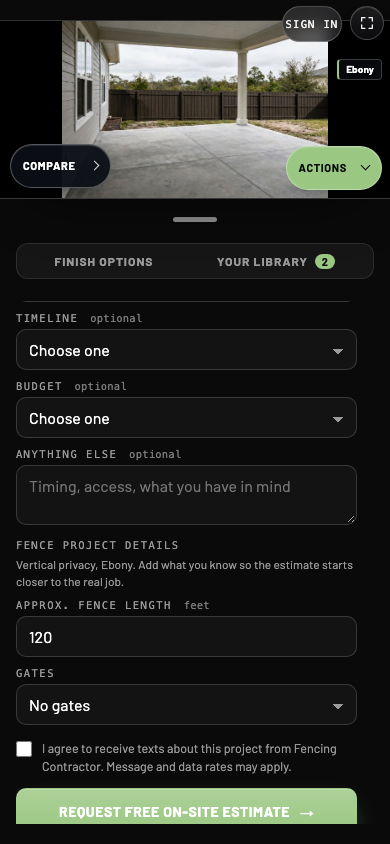
- 1Fence project details
The style and stain from your preview, filled in for you.
- 2Approx. fence length
Filled in from the placement step when you entered a length. Edit it here if needed.
- 3Gates
Choose how many gates you want, from none to five.
| Field | What to enter |
|---|---|
| Approx. fence length | Feet, from 1 to 5,000. Filled in when you entered a length while placing the fence. |
| Gates | No gates, or 1 to 5 gates. |
Send the request
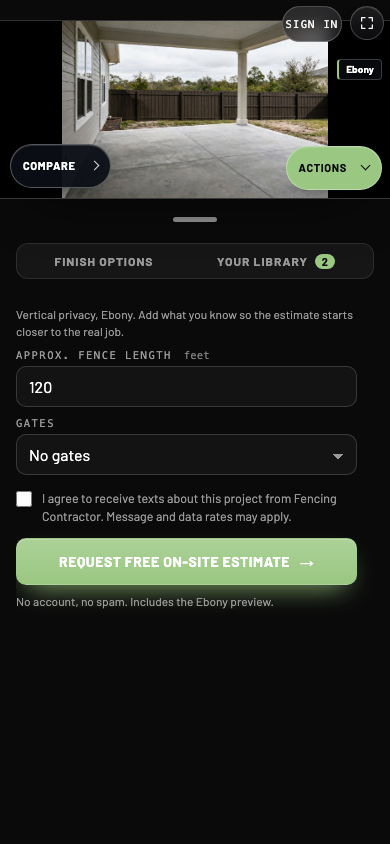
- 1Text message consent
Optional. Select it if you agree to texts about this project.
- 2Request free on-site estimate
Send your details and previews to the contractor.
Read the text message consent statement and select it if you agree. Then select Request free on-site estimate. Wait through Attaching previews and Sending. A Sent to [contractor] message confirms the request and shows the previews that went with it.
If a field is highlighted, correct it and send again. If a sending error appears, follow its message. Do not assume the request was delivered before the confirmation appears.
Use Back to finishes or the close control to leave the form before sending. A quote request asks the contractor to follow up. It is not an installation booking or a final price.
If the contractor's website opens
Some visualizers link to a separate quote or contact page instead of opening the form. Follow that page's instructions. Export your preview if you need to attach it there; a separate form does not receive the image automatically.