Install on your website
The Embed tab gives you the code for your visualizer and the list of websites allowed to use it. With fencing mode on, the same code shows the fence visualizer.
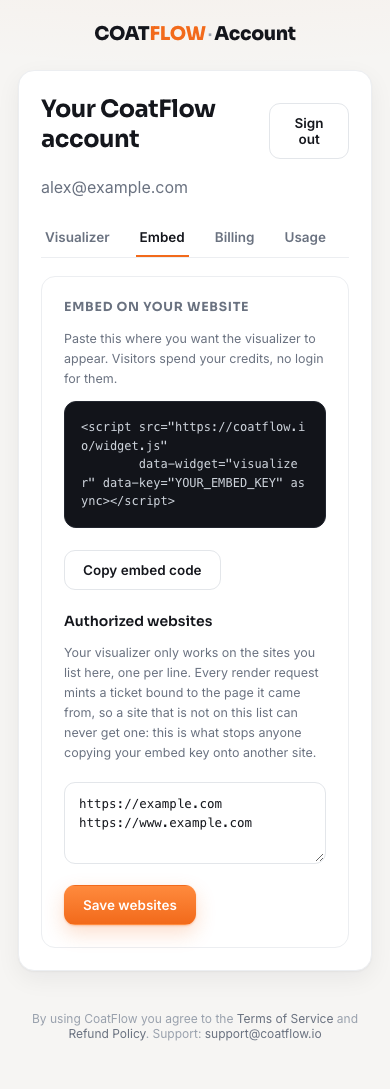
Example account data. Your company details, plan and balance will differ.
- 1Embed tab
Open your installation tools.
- 2Copy embed code
Copy the complete snippet supplied for your account.
- 3Authorized websites
List each allowed website on its own line.
- 4Save websites
Save before testing your published page.
1. Authorize your website
Under Authorized websites, enter the full website origin, one per line. Include the protocol and hostname, without a page path. For example:
https://example.com
https://www.example.com
The root domain and www version are different origins. Add the versions you actually use. If you use a separate staging website, add that origin when you need to test there.
Select Save websites. A successful save displays Saved. If it says no valid sites were saved, correct the entries and save again. With no valid websites authorized, the embed is disabled.
2. Copy your code
Select Copy embed code. The button briefly changes to Copied!. Use the snippet from your own account, which contains your own embed key.
The code has this general shape:
<script src="https://coatflow.io/widget.js"
        data-widget="visualizer" data-key="YOUR_EMBED_KEY" async></script>
YOUR_EMBED_KEY above is an example, not a working key. Copying the dashboard snippet avoids editing it by hand.
3. Add it to your page
Paste the complete snippet into the HTML or custom code area where you want the visualizer to appear. Your website builder must allow script tags. Save and publish the page as usual.
Use the supplied loader snippet so the widget can size itself on the host page. Avoid a bare iframe or a text-only block.
4. Test the published page
- Open the published URL in a normal browser window.
- Confirm the visualizer loads in the intended place.
- Upload a sample yard photo and draw a fence line.
- Check the style and stain picker, the layout on a phone and the enabled controls.
- If you render a preview, remember that visitor renders use your account's credits.
- Check the quote destination. See Fence quote requests before sending a test request.
Some website editors show custom code differently from the published page. Test the published page before deciding that installation failed.
Move or remove the visualizer
Move the snippet to the place you want in the page editor. To remove it from one page, remove that page's snippet and publish. To stop a whole website from using your widget, remove its origin from Authorized websites and select Save websites.
If it loads but cannot render, check your saved origins and Usage. For more help, see installation troubleshooting.