Brand and live preview
Open Visualizer in your account. The Brand panel controls how your company is shown inside the fence visualizer.
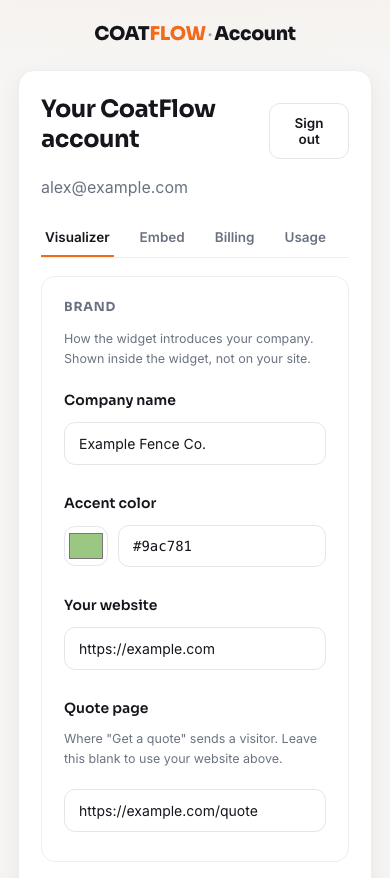
Example account data. Your company details, plan and balance will differ.
- 1Visualizer tab
Open brand and feature settings.
- 2Company name
The company name homeowners see in the widget.
- 3Accent color
Choose a color or enter a six-digit hex value.
- 4Quote page
Set the destination used by the quote link.
Edit your brand
| Field | How to use it |
|---|---|
| Company name | Enter your customer-facing company name, up to 80 characters. |
| Accent color | Use the color picker or enter a six-digit hex color such as #9ac781. |
| Your website | Enter the full website address, including https://. |
| Quote page | Enter the full address of your quote or contact page. Leave it blank to use Your website. |
Your company name also appears in the quote form and on the visitor sign-in page. These settings affect the widget only. They do not change your website's own header, logo or page design.
Save and check your changes
Scroll below Features, then select Save changes. The button shows Saving while the request is in progress. If an error appears, correct the issue and save again.
The Live preview below the save button reloads after a successful save. It uses your saved settings. Unsaved edits above do not become the customer's configuration.
Check the company name, color and visible feature controls. If you open a full-screen preview, exit it before you continue editing.
Check the quote destination
Make sure your quote page works and is suitable for customers. A widget with the built-in quote form collects the request inside the visualizer, with the fence details attached. Other setups send the visitor to your quote page. See Fence quote requests for what arrives.
The dashboard has company name and accent color settings. It does not have a logo upload or catalog editing control. Contact CoatFlow if you need help with either.