Visitor sign-in and saved work
Sign in when the visualizer offers it to keep your previews across devices or to use a feature that requires an account, such as walkthrough videos on some sites. This visitor screen is separate from the contractor dashboard. It shows the name of the company whose visualizer you are using.
Sign in
Select Sign in in the visualizer. It opens a new tab. Enter your email and password and choose Sign in, or select Continue with Google. Complete sign-in, then return to the original visualizer tab, where your photo, fence line and stain are still in place.
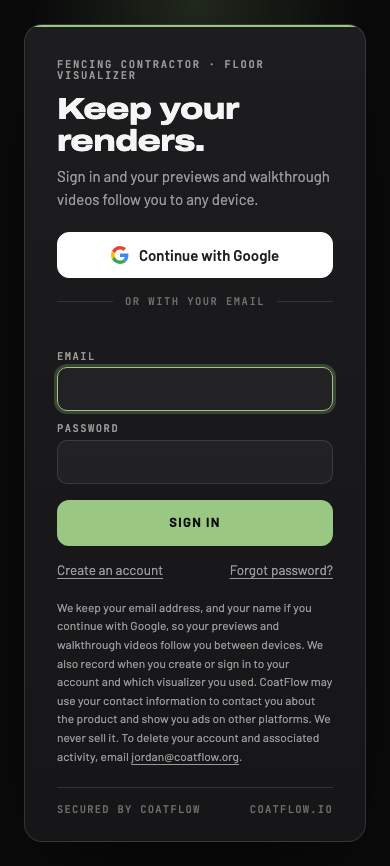
- 1Email
Enter the email for your visitor account, then your password below.
- 2Account links
Create an account or begin password recovery.
Create a visitor account
Select Create an account. Enter your email and a password of at least eight characters with a letter and a number. Read the account information shown beneath the form, then select Create account.
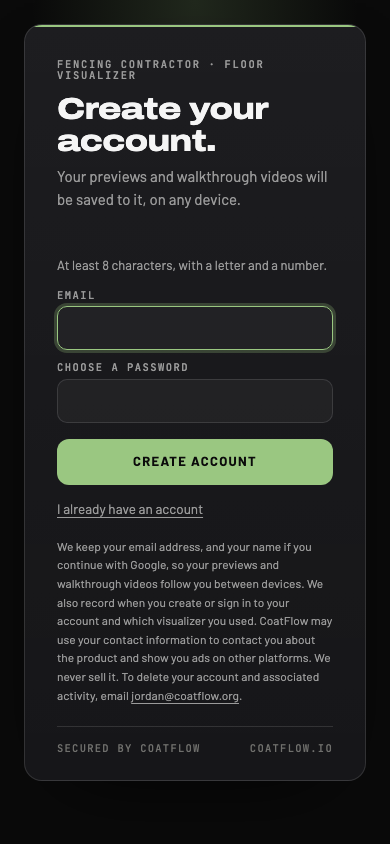
- 1Create account
Use an email you can access and follow the password requirements.
Enter the code from the confirmation email and select Confirm. Send a new code requests a replacement. Use a different email returns to sign-in so you can correct the address. Check your spam folder if the email does not arrive.
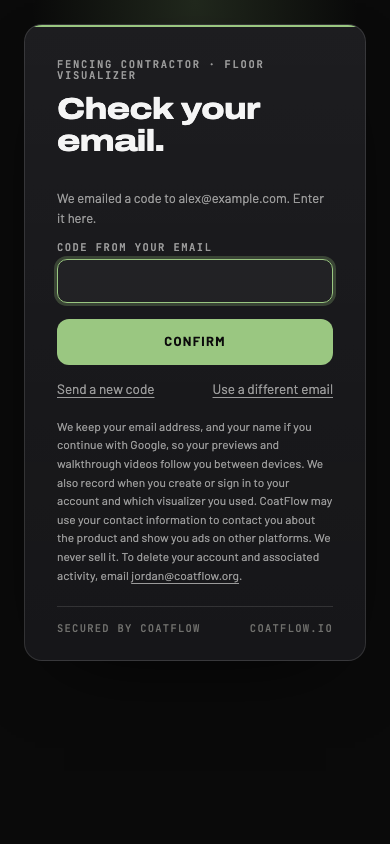
- 1Email code
Enter the code sent to the address shown.
- 2Confirmation options
Confirm, request a new code or use another email.
Reset your visitor password
- From visitor sign-in, select Forgot password?.
- Enter your email and select Send code.
- On the next screen, enter the emailed code and your new password.
- Select Set password, then follow the message to sign in again.
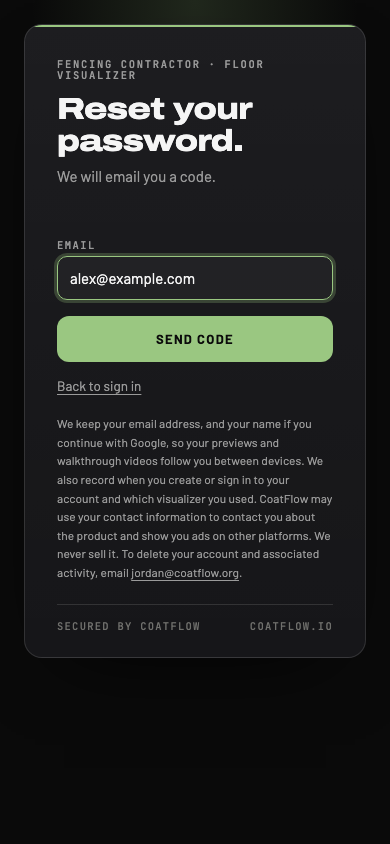
- 1Send code
Request a password reset email for your visitor account.
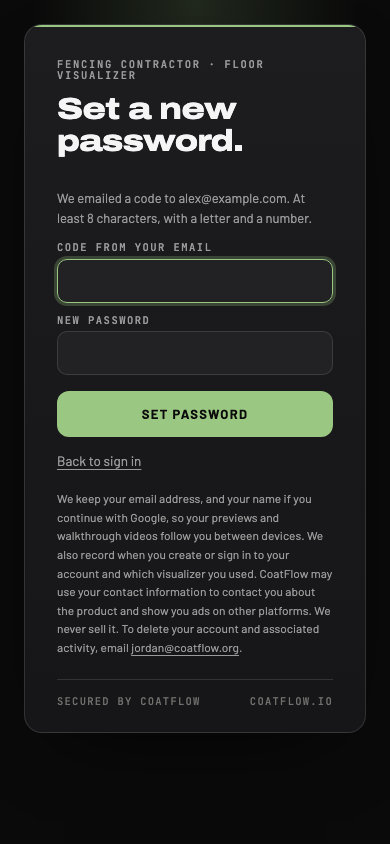
- 1New password
Use the emailed code and a password that meets the requirements shown.
Return to the visualizer
A success message tells you that you are signed in and returning to the visualizer. If the new tab stays open, return to the original tab yourself. Check the account control and Your library there.
Use the account menu's Sign out action when you finish on a shared device. If the sign-in tab was opened without starting from the visualizer, reopen the visualizer and start sign-in from its control so the tabs can connect.