Your library
Your library keeps your fence previews together so you can come back to them. When enabled, finished previews are saved automatically as storage allows.
Open your library
Select Your library on the upload screen or the tab beside Finish options. A count shows how many previews are saved.
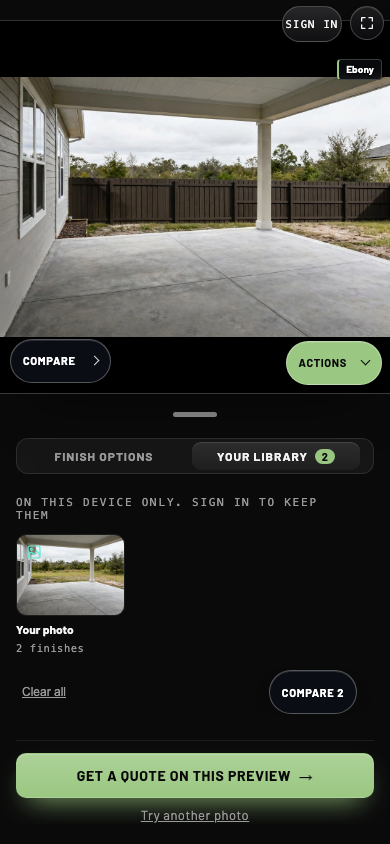
- 1Yard photo
Open a photo to see the fence styles you tried on it.
- 2Clear all
Remove library work in the displayed scope. Export anything you need first.
- 3Compare
Open Compare with the previews saved for this photo.
Photo, style, stain
The library is organized in three levels:
- Photos. One tile for each yard photo, with the number of previews made on it.
- Styles. Inside a photo, one card for each fence style you rendered, with its number of stains.
- Stains. Inside a style, one tile for each stain preview. The tile says Photo, or Photo + video when it has a walkthrough.
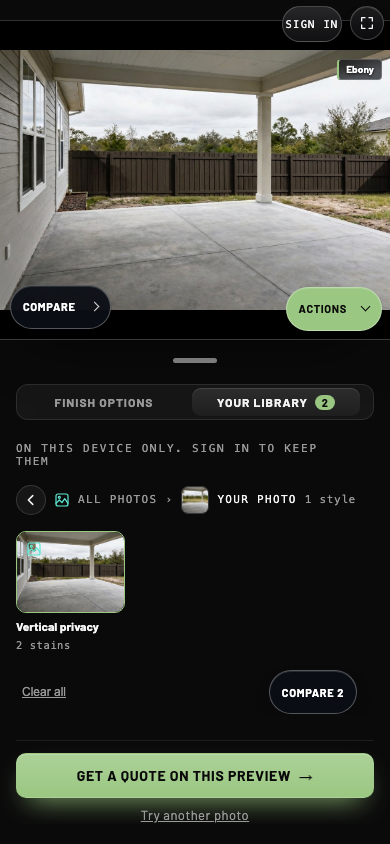
- 1Breadcrumbs
Shows where you are. Select All photos or the back arrow to move up.
- 2Style card
Open the stains you rendered in this style.
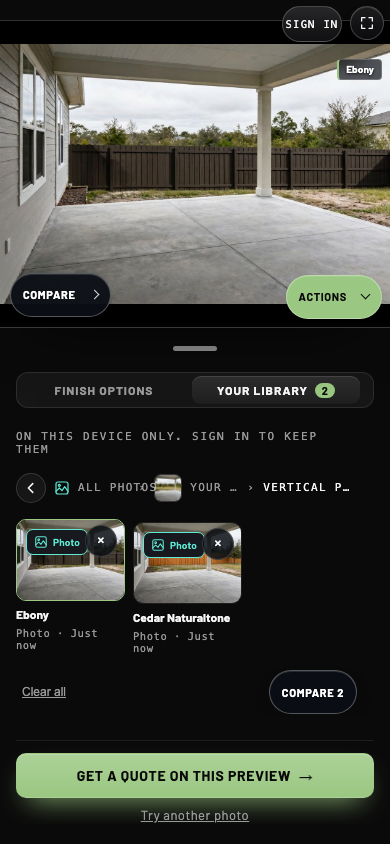
- 1Breadcrumbs
All photos, then your photo, then the style you opened.
- 2Stain preview
Open this preview on the main screen.
- 3Remove
Delete this one preview from the library.
Opening a stain tile puts that preview back on the main screen. When it has a walkthrough, use Photo and Video on the preview to switch between them. Reopening a saved preview is different from selecting Render photo, which creates a new one.
On this device or across devices
| Library state | Where your work is available |
|---|---|
| Signed out | The current browser and device, where storage is allowed. The library says On this device only. |
| Signed in with Cloud library enabled | Saved work can sync to your account and appear on another device. |
| Storage blocked or full | Saving may fail even if the preview displayed. Export a copy you want to keep. |
See Visitor sign-in for email, Google and password recovery steps.
Use the Sign in control or the sign-in invitation in the library when offered. After sign-in, return to the visualizer and allow it to load your work.
A private browsing session, cleared website data, a different browser or an embedded website's storage restrictions can affect the device library. It is not a substitute for an exported copy of work you need to keep.
Rendering jobs
An in-progress tile means a preview or walkthrough is still being prepared. A walkthrough can take several minutes. If you leave and come back in the same browser, look in Your library for the job before starting again.
A failed job may show retry or dismiss controls. Read its message before retrying. A retry requests the work again; dismissing removes the job entry.
Remove saved work
Use a tile's remove control to delete the preview it names. Clear all removes the library items in its current scope. These are removal actions, so export anything you need first. Do not rely on an undo action.