Photos of your yard
The fence is built on your own photo, so a clear view of the ground along the fence line matters most.
Upload a photo
- Select Upload photo, or click the large upload area.
- Choose a picture from your device.
- Wait for Reading your yard photo... to finish. The fence placement step opens next.
On a computer, you can also drag a picture onto the upload area. The visualizer accepts JPG, PNG or HEIC photos up to 10 MB. If your browser cannot read an HEIC file, export it as JPG and try again.
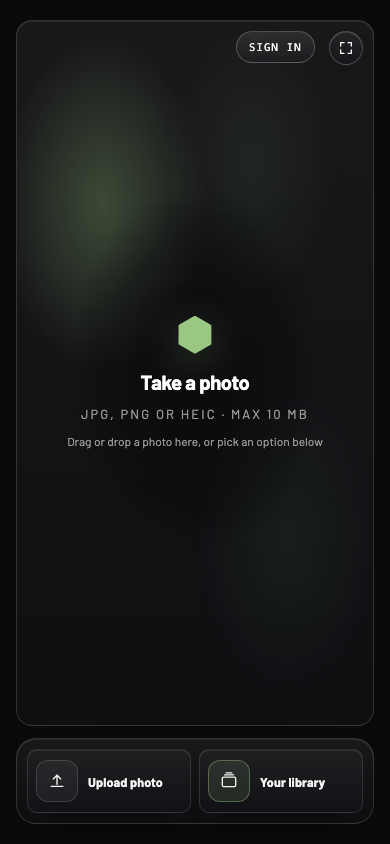
- 1Photo area
Drop a photo here on a computer, or tap to take one on a phone.
- 2Upload photo
Choose a yard photo that is already on your device.
- 3Your library
Return to earlier previews when this feature is enabled.
Take a photo on a phone
On a phone, the large area reads Take a photo. Tap it and follow your device's camera prompt, approving camera access if asked. To use a picture you already took, tap Upload photo instead.
Take a photo that works well
- Stand back far enough to see the whole run of fence, including both ends when you can.
- Keep the ground along the fence line in view. The line you draw sits on that ground.
- Shoot in daylight, level and in focus. Avoid heavy shadows, glare and tilted angles.
- Move cars, bins or furniture out of the way when practical.
- For several sides of a yard, take one photo per side and preview each one separately.
There are no sample yards in the Fence Visualizer. Every fence preview starts from your own photo.
Change the starting photo
Use Change photo in the picker, or Try another photo below a completed preview. Return to upload, then choose your next image. You draw a new fence line for each new photo.
Saved work remains in Your library when that feature and browser storage are available. Each photo keeps its own fence lines, styles and previews. Comparisons are between previews of the same original photo.
If the photo does not open
- Over 10 MB: resize or export the image at a smaller size.
- Unreadable image: save a new JPG copy and upload that file.
- Camera unavailable: use the phone's camera app and upload afterward.
- Fence lands in an odd place: retake the photo with more of the ground visible, then redraw the line.