Preview, enlarge and export
A finished preview shows the fence on your own photo. Use the controls around the image to look closer or keep a copy.
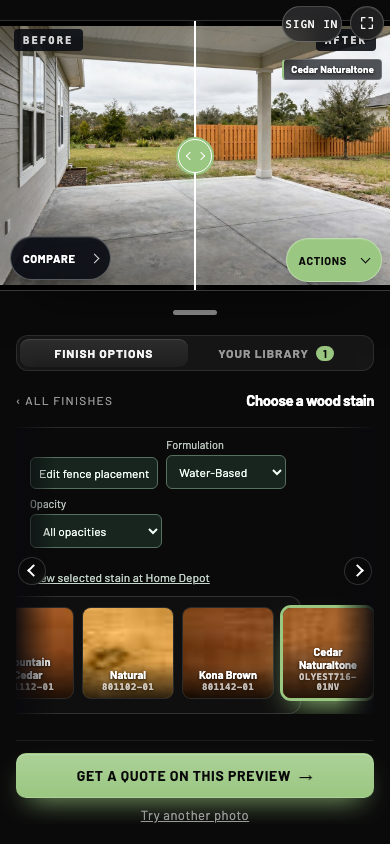
- 1Divider
Drag to reveal your yard before and after.
- 2Actions
Open tools for the preview on screen.
- 3Get a quote on this preview
Send this preview to the contractor.
Drag the before and after divider
Open Actions and select Show before and after. Then drag the handle sideways with a mouse or finger. One side shows your yard as it is today and the other shows the new fence. The stain name in the corner identifies the preview you are looking at. Select Hide before and after in Actions to return to the finished photo alone.
The divider compares one preview with its original photo. Use Compare fence options to put two previews side by side.
Open Actions
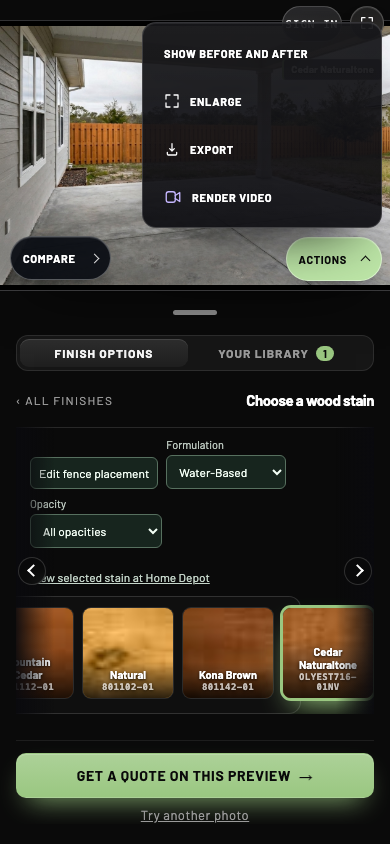
- 1Show before and after
Turn the divider on or off.
- 2Enlarge
Open a larger view of the preview.
- 3Export
Save or share the preview on screen.
- 4Render video
Create a walkthrough of this preview, when enabled.
| Control | What it does |
|---|---|
| Show before and after / Hide before and after | Show or hide the divider on the main preview. |
| Enlarge | Opens the still preview in a larger view. |
| Export | Saves or shares the preview currently shown. |
| Share | Opens a supported desktop sharing option. It may not appear in every browser. |
| Render video | Creates a walkthrough from the finished preview, when enabled. Some sites ask you to sign in first. |
| Photo / Video | Switches between a preview and its existing walkthrough. It does not create a new video. |
| Export walkthrough | Saves or shares the video when the clip is on screen. |
Close the menu by selecting Actions again or clicking outside it.
Enlarge the preview
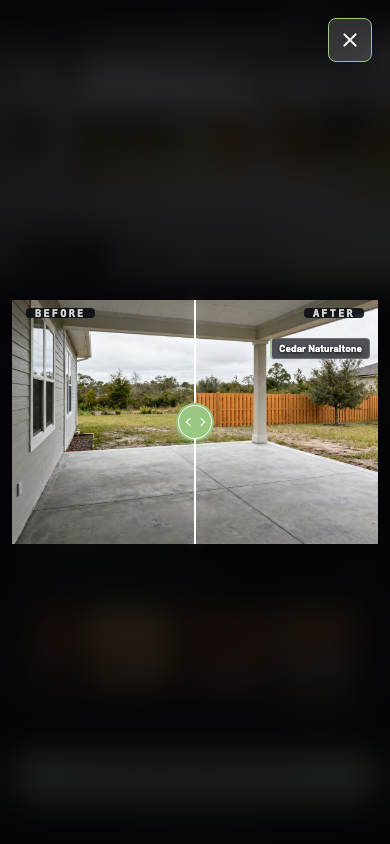
- 1Before and after
Drag the divider to inspect the new fence.
- 2Close
Return to the main visualizer.
Select Enlarge. Use the divider in the enlarged view to look closely at the fence. Select the close control or press Escape to return. The enlarged view is for inspecting a still image; full screen expands the entire widget.
Save or share a copy
On a computer, Export downloads the image when supported. On a phone, it may open the device's share sheet. Choose the device's save or share action to finish.
If direct sharing is blocked, the visualizer may offer a link to copy. Follow the on-screen instruction, then paste the link where you want to share it. If an image opens in a new tab, use the browser's save options.
Check your Downloads folder or the destination selected in the share sheet. An exported copy is separate from the visualizer's library.
Expand the whole visualizer
Select the full-screen corner icon when available. Use the exit icon to return to the page. Escape can also exit on supported desktop browsers. Full screen depends on the host website and device.
A preview is illustrative. The picker itself notes that the on-site measure decides the final spec. Confirm the exact placement, height, style and stain with your contractor.