Turn on fencing mode
Fencing mode turns your CoatFlow visualizer into a fence visualizer. In your account, open Visualizer and scroll to Features.
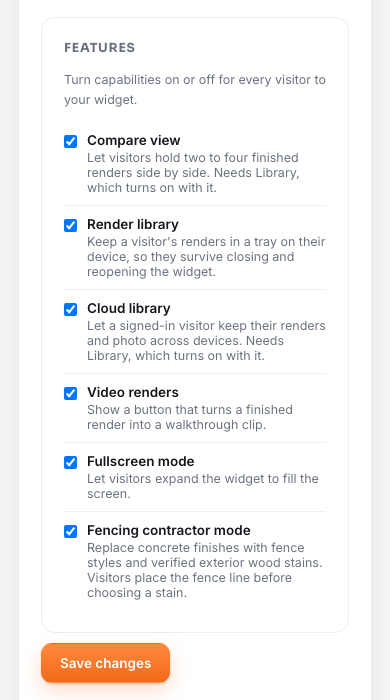
Example account data. Your company details, plan and balance will differ.
- 1Fencing contractor mode
Turn the visualizer into a fence visualizer.
- 2Compare view
Let visitors put two previews side by side. Turns on Render library.
- 3Cloud library
Let signed-in visitors keep their previews across devices.
- 4Save changes
Apply your settings and refresh the live preview.
Turn it on
- Open Your CoatFlow account and sign in.
- In Visualizer, scroll to Features.
- Select Fencing contractor mode.
- Select Save changes, then check the Live preview.
What changes for your visitors
| Area | With fencing mode on |
|---|---|
| Catalog | Concrete finishes are replaced by five fence styles and 14 exterior wood stains. |
| Steps | Visitors upload a yard photo, draw the fence line, then choose a style and stain. |
| Sample scenes | Not offered. Every preview starts from the visitor's own photo, and the Stock photos panel is hidden. |
| Quote form | Adds Fence project details: the style and stain, approximate length and gates. |
| Walkthroughs | Use a fence prompt that keeps the fence unchanged while the camera moves. |
Fencing mode applies to the whole visualizer on your account, and every fencing account uses the same styles and stains today. Contact CoatFlow if you need a different catalog, or both a floor and a fence visualizer.
The other switches
| Switch | Visitor experience |
|---|---|
| Compare view | Opens side-by-side comparisons of previews on one photo. The current Compare screen shows two at a time. |
| Render library | Keeps previews on a visitor's device so they can reopen them. |
| Cloud library | Offers signed-in visitors their saved previews across devices. |
| Video renders | Shows walkthrough controls on finished previews. |
| Fullscreen mode | Lets visitors expand the widget on supported host pages and devices. |
Compare view and Cloud library require Render library. Turning either on can turn Render library on automatically. Check the switches before saving.
Turning on a feature does not add credits to your plan. Rendering still depends on your account and its current allowance.
Save and verify
Select Save changes, then use Live preview to upload a yard photo and walk through the fence steps. Some tools only appear after a preview is rendered, and Library can be empty in a new browser. A test render uses your account's credits.