
This is a practical routine for showing homeowners their own floor during the estimate, so the color decision is made before you leave the driveway. The examples use the CoatFlow Floor Visualizer, which runs in the browser on any iPhone, iPad, Android phone or tablet, with nothing to install.
Key takeaways
- Narrow the chart on the first call: ask what gets tracked in, who parks in there and what color the cabinets are, then walk in with two or three candidates, not twenty.
- Photograph the slab the way the homeowner sees the room, with what will not change in the frame, in the light they live in.
- Show two or three finishes from your own catalog on their photo. Three good options on their own floor beat twenty chips on a board.
- Say what the preview is: an illustrative AI preview that settles the color direction. The chip on their slab confirms it.
- Send a walkthrough to whoever else decides, and make sure the quote request lands in your CRM, not an inbox.
Before you arrive
Before you arrive: narrow the chart on the phone call
Three questions on the first call cut a big flake chart down to a short list:
- What gets tracked in? Mud, salt, sawdust, a car that comes in hot off the highway. That sets how light or dark the floor can go.
- Who parks in there? Hot tires and oil drips show on light floors; near-black floors show dust. Mid-tones with dark, medium and light chips hide the most.
- What color are the cabinets? Start from what will not change, and pick warm or cool to suit it.
Walk in with two or three candidates, not twenty. Our guide to choosing flake colors has the full reasoning.
Step 1
Step 1: photograph the slab
Take the photo the way the homeowner sees the room: standing in the doorway or at the back wall, phone at chest height, the whole floor in frame. A few things make the preview better:
- Include what will not change. Cabinets, walls, the water heater, the car if it lives there. Color decisions are made against them.
- Shoot in the light they live in. If the door is usually closed, close it. Cool ceiling lights and afternoon sun make the same blend look different.
- Clear what you can. Boxes and bikes on the floor hide the area you are selling.
If they would rather not have their garage photographed, the visualizer's built-in demo rooms (a garage, a patio and a pool deck) preview every finish right away.
Step 2
Step 2: show two or three finishes from your own catalog
Open your shortlist and show each finish on their photo. With CoatFlow, each preview takes about 15 seconds, and the finishes come from your own catalog, built around the products you install, under the names your supplier uses. Our team sets it up from your color charts.
Resist the urge to show everything. Three good options on their own floor beat twenty chips on a board. If they ask for a wild card, add one, but bring the conversation back to the shortlist.
Step 3
Step 3: let them compare on their own floor
Now the homeowner is comparing floors, not chips: the warm blend next to their cabinets, the busy gray under their lights. This is where you earn trust by saying what the preview is and is not.
- It is an illustrative AI preview of their floor in that finish. It is excellent for settling the color direction.
- It is not a photo of an installed job. The on-site measure and a physical sample decide the final spec.
- Confirm with a chip. Once they pick, hold the real chip on their slab under their lights. The preview narrows; the chip confirms.
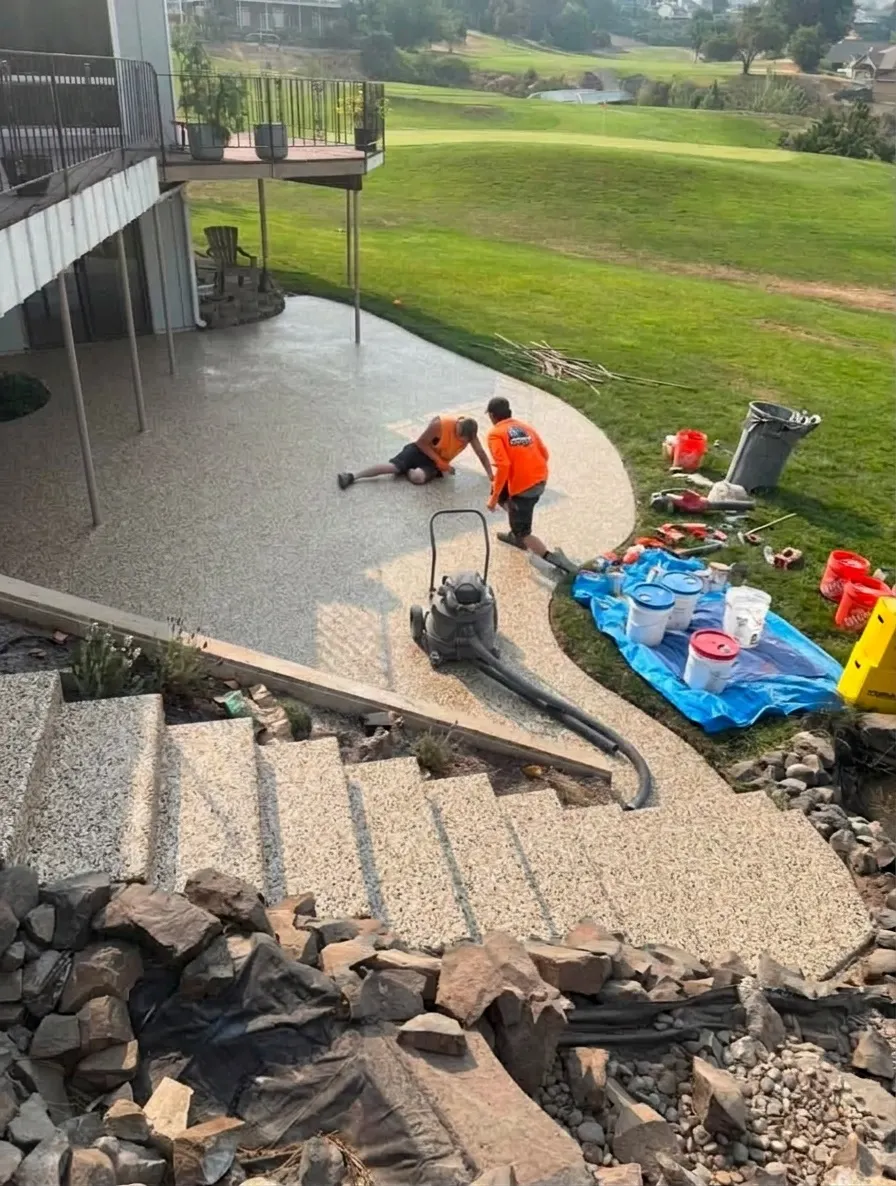
Shoreline, a warm blend, on a contractor's patio job photo. An illustrative AI preview, not a photo of an installed floor. 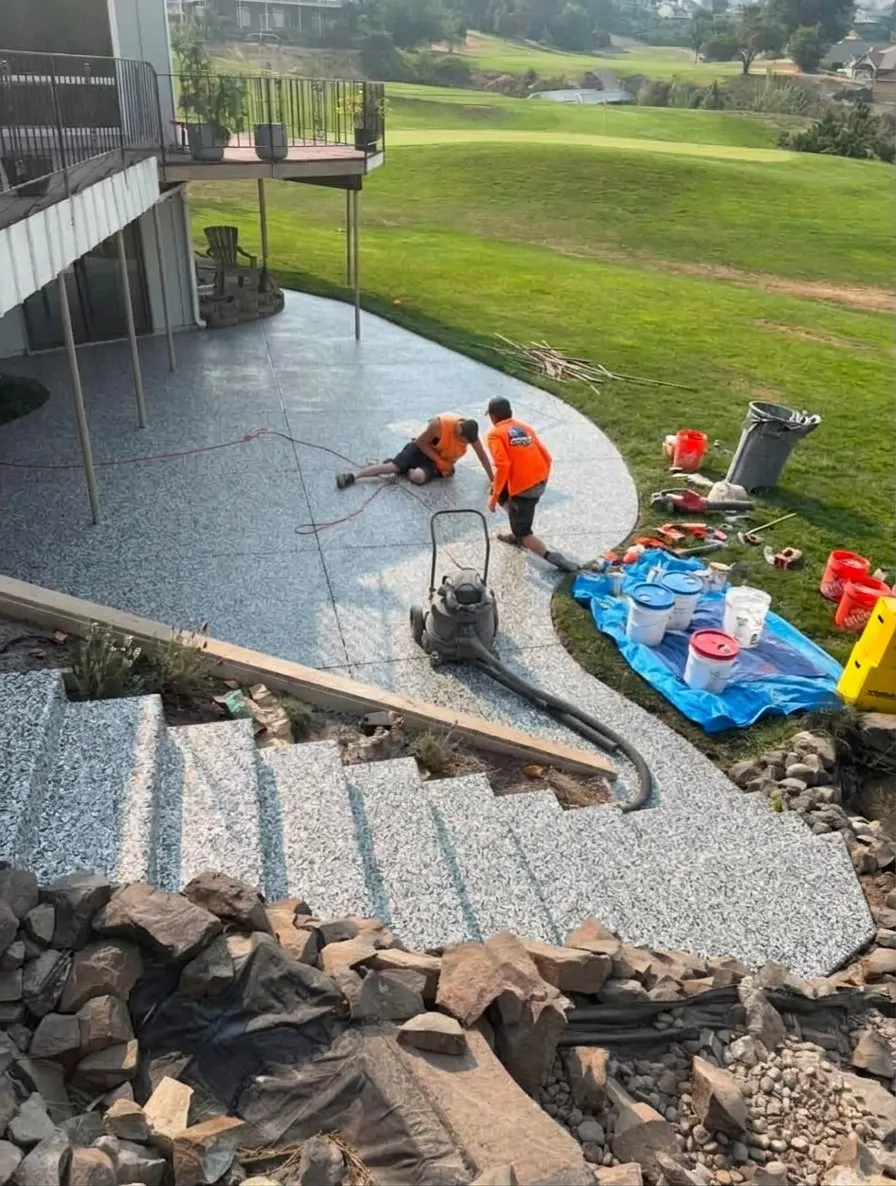
Gravel, a busy gray, on the same patio. An illustrative AI preview, not a photo of an installed floor.


Step 4
Step 4: send a walkthrough to whoever else decides
The spouse at work, the parent paying for it, the business partner: the other decider is one reason a good estimate goes quiet. Give them something better than a forwarded chip photo.
CoatFlow can turn any finished preview into a short walkthrough video of the homeowner's own floor, so the person who was not there sees what was decided. Each clip takes a few minutes to film, so start it before you measure and it is ready when you sit down to price. Our page on walkthrough videos shows an example.
Step 5
Step 5: make the quote request land in your CRM
When the homeowner, or the other decider, asks for the quote later from your website, it should not sit in an inbox. With CoatFlow, a quote request goes straight into the CRM you already use (HighLevel, Jobber, Housecall Pro or any other), with their name, phone number and email, plus the photo of their floor and the picture of it with your finish. Our team installs and manages that connection. No CRM yet? We set up the one we recommend.
Talk track
What to say: a few lines that work
You do not need a script, but these lines keep the visit moving:
- "Before we talk price, let's look at your floor in the two colors you liked on the phone."
- "This is a preview of your floor in that blend. We'll confirm it with the real chip on your slab before we order anything."
- "Who else should see this? I can send a short video of your floor in this color."
- "If neither feels right, tell me what's off, warmer, darker, busier, and I'll pull one more."
Watch for
Common mistakes
- Too many options. A long list turns a decision into homework. Shortlist on the phone.
- The wrong light. Judging a blend in the driveway, then installing it under cool garage lights.
- Promising the preview is exact. It settles the look; the measure and the sample settle the spec.
- Leaving without the other decider in the loop. Send the walkthrough before you pull out of the driveway.
- A quote request with nowhere to go. If leads land in a personal inbox, follow-up depends on memory.
For more on the sales side, see our guide on how to sell epoxy floors, and for why a preview beats a board, visualizer vs sample boards.
Try it
Try it before your next estimate
The same visualizer sits on your website for homeowners and opens on your phone or tablet at the estimate. See how it works, or try 3 free renders on our live demo: no sign-up, no card, no time limit. The demo makes photo previews; walkthrough video and the visualizer on your own website come with a plan. Start here.