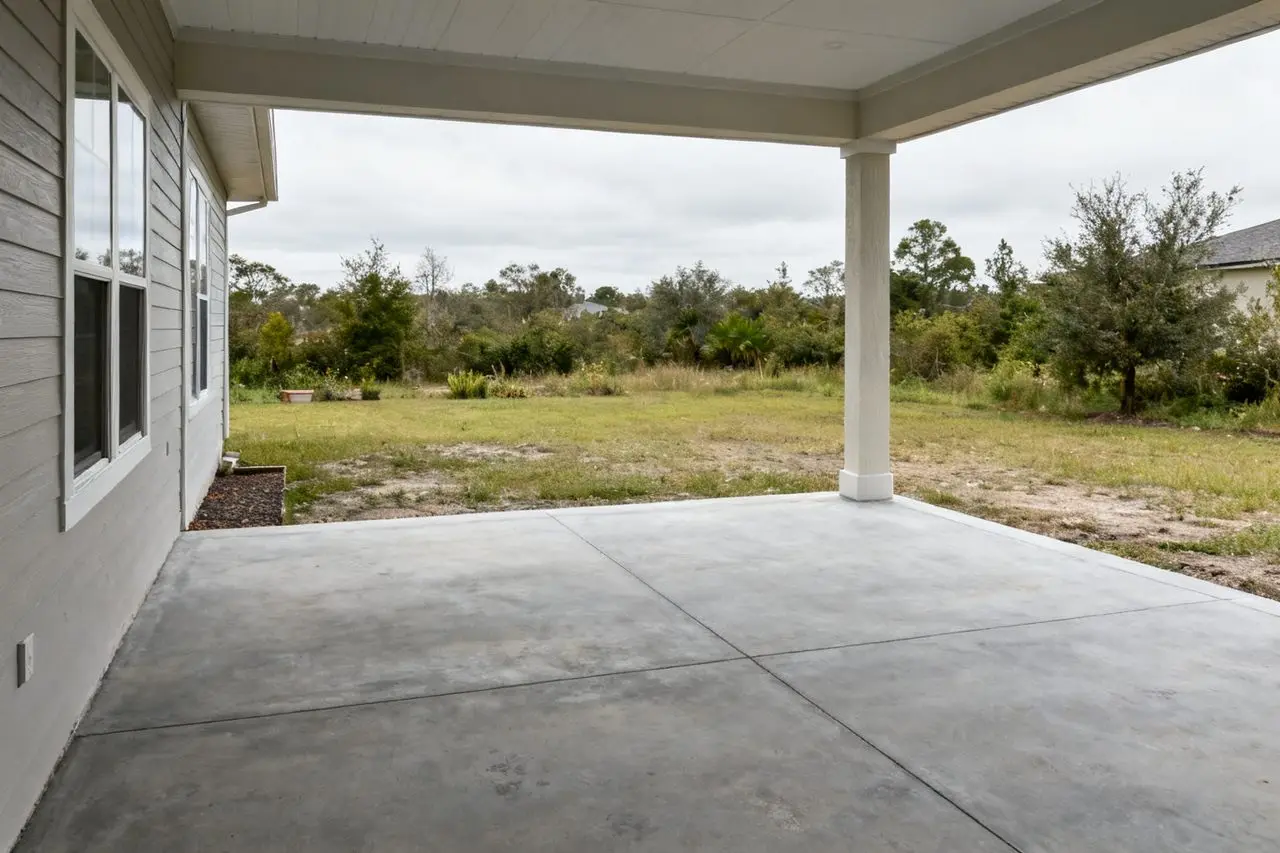


An example yardRendered by the Fence Visualizer
Fence Visualizer
They see the fence before you measure the yard.
A homeowner uploads a photo of their yard, draws where the fence goes, and picks one of five styles and a wood stain. The Fence Visualizer builds that fence into their own photo, on your website, under your brand. Then they ask you for the quote.
Start free trial Try it right here
Fencing mode is a switch in your CoatFlow account. Same plans, same render credits.
How it works
Three steps, all on their phone.
- 01
Photograph the yard.
One photo from far enough back to see the whole run, with the ground along the fence line in view. JPG, PNG or HEIC up to 10 MB, or the phone's camera straight from the widget.
- 02
Draw the fence line.
Tap to add corners or drag to trace a curve, along the ground where the posts will stand. Undo and clear are one tap away, or they can let the visualizer choose the placement.
- 03
Pick a style and a stain.
Five styles and 14 exterior wood stains in nine colors, filtered by water or oil base and by opacity. Render, then drag the divider to see the yard before and after.
Five styles, nine stain colors
Every style you build, in the stain they want.
Turn it, switch the style, change the stain. In the widget the same choices are built into the homeowner's own photo.
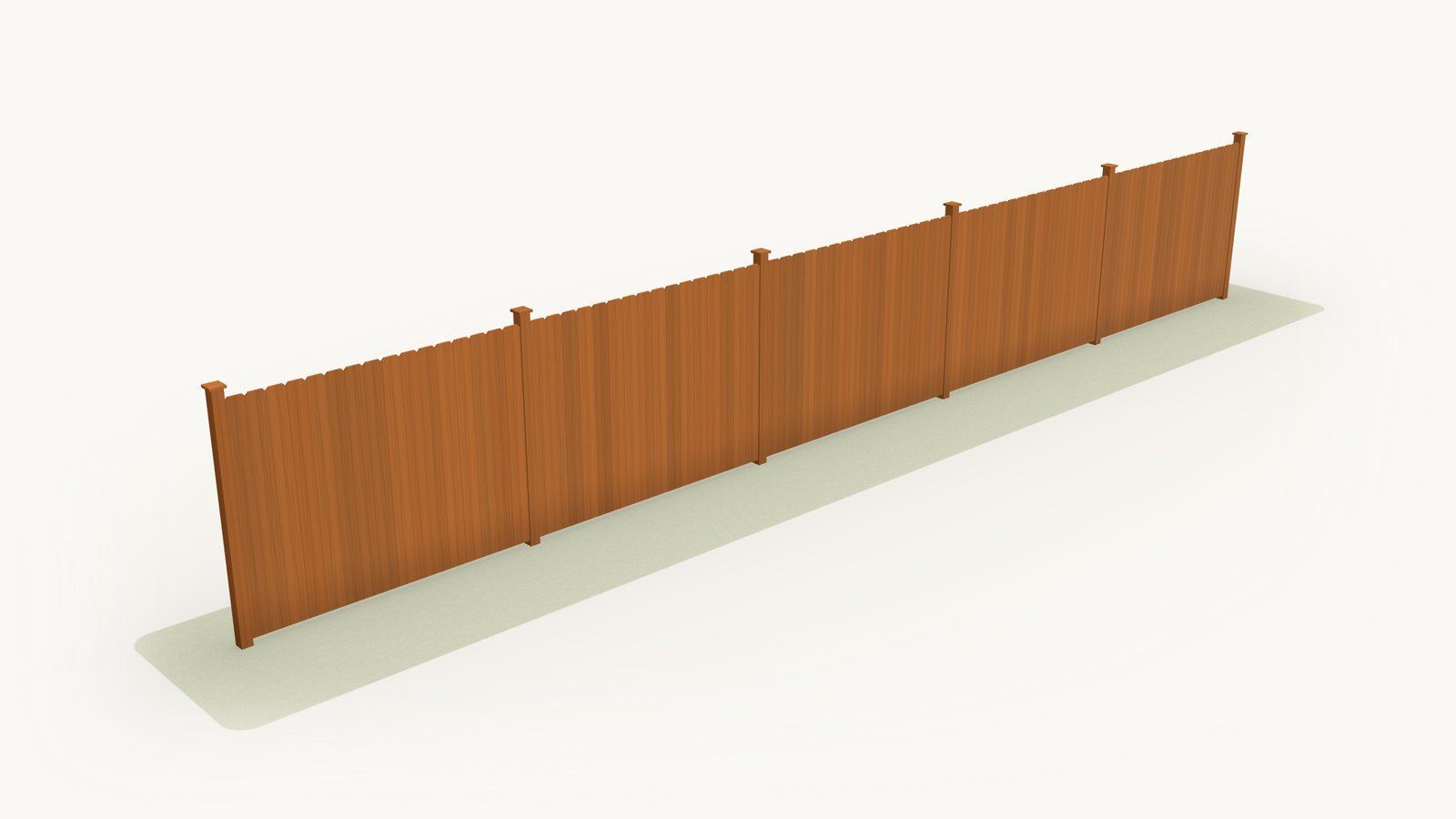
Fence style
Wood stain
An illustration of the five styles. Stain colors are shown as closely as a screen allows; confirm with a sample board.
Live demo
Try it right here. This is the real thing.
The same fence visualizer your customers would use, running on our demo. Upload a photo of a yard, draw the line and render. Every preview starts from your own photo.
For your team
The quote request arrives with the fence already chosen.
- Contact. Name, phone, email, ZIP code and project type, plus the street address when given.
- Timing and budget. The timeline and budget range when chosen.
- The fence. Style, stain, whether the line was drawn or placed automatically, approximate length in feet and number of gates.
- Previews. Lasting links to the original yard photo, up to four previews and the walkthrough video when included.
- Source. The page the request came from.
Every request arrives by email, and can also go to your CRM or a webhook, with the fence details in their own fields so nothing has to be read out of notes. If the images cannot be attached, the request still arrives. That is the built-in quote form; if your visualizer sends homeowners to your own quote page instead, the request comes through your site's form and the homeowner can export a preview to attach.
Spec sheet
What's in it
One install. Here is what comes with it.
-
01
Their own yard, not a sample.
Every preview starts from the homeowner's photo. There are no sample yards.
-
02
Placement they control.
Tap corners or trace a curve, undo, clear, or let the visualizer place it. A new line never overwrites earlier previews.
-
03
Real stains, named.
Fourteen exterior wood stains in nine colors from a national retail brand, each tile with its color name and product code, filtered by water or oil and by opacity.
-
04
Compare two options.
Two previews of the same yard side by side, when Compare is on.
-
05
Walkthrough video.
A slow camera glide toward the new fence that keeps it exactly as rendered, when video is on.
-
06
Your brand.
Your company name and accent color in the widget, and the quote comes to you.
-
07
Phone first.
The camera opens from the widget, and the styles swipe sideways on a small screen.
-
08
Straight about the preview.
The picker tells homeowners a preview is illustrative and the on-site measure decides the final spec. Height, gates and hardware stay yours to quote.
Install
One switch, one script tag.
Turn on Fencing contractor mode in your CoatFlow account, under Visualizer and Features. Authorize your website, then paste the embed code from your account. The same code shows the fence visualizer.
<script src="https://coatflow.io/widget.js" data-widget="visualizer" data-key="YOUR_EMBED_KEY" async></script>YOUR_EMBED_KEY is a placeholder. Copy the real snippet from your account.
Plans
Same account, same plans.
Fence previews and walkthroughs use the same photo and video renders as any other preview. Plans start at $99/month, the free trial includes 5 photo renders and a video walkthrough with no card, and the full table is on the pricing page. Want a floor visualizer and a fence visualizer? Talk to us.
FAQ
Fair questions about the Fence Visualizer.
What is the CoatFlow Fence Visualizer?
A visualizer for fence contractors' websites. A homeowner uploads a photo of their yard, draws where the fence goes, picks a style and a wood stain, and sees a generated preview of that fence in their own yard. It runs on your site under your brand, and with the built-in quote form the quote request reaches you with those choices attached.
Does the homeowner need a photo of their yard?
Yes. Every fence preview starts from their own photo, and there are no sample yards. The widget takes JPG, PNG or HEIC files up to 10 MB, and on a phone it can open the camera directly.
How does the homeowner show where the fence goes?
They draw a line along the ground where the posts will stand: tap to add corners, or drag to trace a curve, with undo and clear. Or they select Choose placement for me and the visualizer decides, and they can still edit the line afterwards.
Which fence styles and stains are included?
Five styles: vertical privacy, horizontal slat, board-on-board, shadowbox and three-point picket. Fourteen exterior wood stains in nine colors, water or oil based, in transparent, semi-transparent and solid opacities. Every fencing account uses the same catalog today; contact us if you need a different one.
Is the preview exactly what we will build?
No. It is a generated preview for choosing a look. Board spacing can vary from one render to the next, and a screen never shows a stain exactly. Height, gates, posts and hardware come from your quote and your on-site measure, and the widget tells homeowners so.
What do I receive when a homeowner asks for a quote?
With the built-in quote form: their contact details, the timeline and budget when given, the original yard photo, up to four previews and the walkthrough video when included, plus the style, the stain, how the line was placed, the approximate length and the number of gates. Every request arrives by email, and can also go to your CRM or a webhook. If your visualizer sends homeowners to your own quote page instead, the request comes through your site's form without the fence details, and the homeowner can export a preview to attach there.
Can homeowners compare two fences?
Yes, when Compare is on. It shows two previews of the same yard side by side, for example the same style in two stains.
How do I put it on my website?
Turn on Fencing contractor mode in your CoatFlow account under Visualizer and Features, authorize your website, and paste one script tag from your account. The same embed code then shows the fence visualizer.
What does it cost?
The same plans as the Floor Visualizer, from $99/month, and fence previews use the same photo and video renders as any other preview. The free trial includes 5 photo renders and a video walkthrough, with no card.
Can I offer both a floor and a fence visualizer?
Fencing mode applies to the whole visualizer on an account. If you want both a floor and a fence visualizer, contact us.
More answers in the Fence Visualizer help center.